
Overview
This article is for using Acre Classic for Windows.
CSV importing can be utilized to quickly populate the system database. The CSV file format is included and can be downloaded by selecting the “Download Example CSV” button. Once populated the file is then saved locally on the customer's machine and then uploaded into Feenics by clicking the “Upload CSV” button.
Batch Adding People
To Import from a Batch File:
- (OPTIONAL) Download the example CSV file from the batch import page.
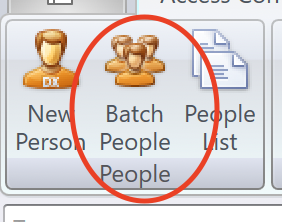
- Fill in the CSV with the necessary information. To not use a field, leave it blank. First Name and Last name are required fields.
- Complete the CSV file and save it locally to the workstation.
- Select the “Upload CSV” button.
- Navigate to the file location.
- Select “OK”.
- Click “Save”.
Once the file has been imported, the operator will be able to review and modify the information prior to clicking the Save button. *No information is added to the system until the Save button is selected.
**The column headers cannot be edited within the CSV. The custom data headers are formatted with the name of the form and the field you're using, i.e. customform.employeeID. Do not reformat that header in the CSV to be more user friendly. The batch import is looking for that format to import that data correctly. If batch import is ran multiples times with duplicate people, the batch import will inform of the duplicates before proceeding and will be removed from the system before the batch import completes again.
How to Customize the CSV
Feenics allows the customization of the CSV that is downloaded by leveraging the column chooser.
To Add or Remove Columns:
- Open the Batch Importer.
- Right-click on one of the current columns.
- Select "Show Column Chooser".
- Check or Un-Check the desired columns.
- Select "Download Current Layout Example".
Adding Multiples
Through the Batch Import and CSV, multiples of some fields can be added.
Cards: Multiple card assignments can be added to the cardholder by using a semicolon ";" between card numbers. Example "123; 1234; 4432".
Access Levels: Multiple Access Levels can be assigned to a cardholder by either leveraging the default access level associated with a Badge Type or by adding the access levels to the access level column separated by a ";". Example "Access Level 1; Access Level 2; Access Level 3".
The access level name used in the batch import must match the name of the access level in the system EXACTLY.
Available Fields
The Batch Import feature allows a user to quickly add in large groups of cardholders. The information that can be added via a Batch Import:
- First Name
- Last Name
- Work Email
- Home Email
- Badge Type
- Access Levels
- Card Numbers
- PIN Code
- Phone
- Mobile
- Work
- Home
- Home and Work Address
- Street
- City
- State/Province
- Country
- Zip/Postal Code
- Tags
- Custom Form Data